Checkout abandonment is one of the most frustrating challenges Shopify store owners face. You've already done the hard work, driving traffic, convincing visitors to browse, and getting them to add products to the cart. Yet, a large percentage of those potential customers leave right before completing the purchase.
In most cases, the problem isn't your product or price. It's the cart and checkout experience.
A Shopify cart drawer can dramatically improve this stage by reducing friction, guiding customers smoothly toward checkout, and creating opportunities to increase conversions and Average Order Value (AOV) at the same time.
In this detailed, step-by-step guide, you'll learn exactly how to add and optimize a cart drawer on Shopify, how to use it strategically to reduce checkout abandonment, and how to turn it into a powerful revenue-driving tool using Cart Drawer Shopify Strategies.
What Is a Cart Drawer in Shopify?
A cart drawer is a slide-in cart that opens from the side of the screen when a customer clicks the cart icon. Instead of redirecting users to a separate cart page, the cart drawer keeps them on the same page, maintaining focus and momentum.
Unlike a traditional cart page, a Shopify cart drawer allows merchants to:
- Display upsells and product recommendations
- Show progress bars for free shipping or discounts
- Add urgency with countdown timers
- Offer free gifts or bundle deals
- Encourage faster checkout decisions
Because it appears instantly and doesn't disrupt browsing, the cart drawer becomes one of the most important conversion touchpoints in a Shopify store.
Why Checkout Abandonment Happens on Shopify
Understanding the problem is the first step to fixing it. Checkout abandonment usually happens because of:
- Unexpected costs or lack of perceived value
- Too many steps before checkout
- Confusing cart layout
- No incentive to complete the purchase
- Distractions caused by page reloads
When customers feel unsure or overwhelmed at the cart stage, they delay or abandon the purchase altogether. A well-designed cart drawer Shopify setup directly addresses these issues.
How a Cart Drawer Reduces Checkout Abandonment
A cart drawer improves the checkout journey in several important ways.
- First, it reduces friction. Customers don't have to leave the product or collection page, which keeps them mentally engaged with shopping rather than navigating pages.
- Second, it reinforces value. By showing savings, bundles, or free shipping progress, customers feel they're getting more for their money.
- Third, it guides decisions. Clear CTAs, relevant upsells, and visual hierarchy help customers know exactly what to do next, proceed to checkout.
Together, these elements significantly reduce hesitation and increase checkout completion.
Where Cart Drawers Work Best in the Funnel
Cart drawers aren't just design elements, they're conversion tools across multiple stages:
- Product Page → Cart Drawer: Reinforces buying decisions
- Cart Drawer → Checkout: Reduces hesitation
- Post-Add-to-Cart Moment: Best time for upsells
- Before Checkout Click: Perfect for urgency and rewards
Looking for the best cart drawer Shopify solutions? Explore this curated list of top cart drawer Shopify apps to choose the right one for your store.
Step-by-Step: How to Add a Shopify Cart Drawer
Below is a detailed breakdown of how to set up a cart drawer using the Wizio Shopify Bundle App, following the exact workflow shown in the video tutorial.
Watch the Step-by-Step Tutorial on YouTube
Below this article, you'll find a YouTube video showing a complete on-screen walkthrough of how to add and optimize a Shopify cart drawer using Wizio. The video demonstrates real examples, setup steps, and best practices from installation to optimization.
Step 1: Open Wizio in Shopify Admin
Log in to your Shopify admin panel and open the Wizio Bundle app. From the dashboard, navigate to the Cart Drawer section.
Step 2: Enable the Cart Drawer
Turn on the cart drawer feature. You'll immediately see a live preview on the right side, allowing you to visualize changes in real time.
Step 3: Customize the Cart Header
Edit header text, labels, and styling. You can also enable announcement messages, such as free shipping reminders or limited-time offers, to grab attention.
Step 4: Add Urgency with Timers and Progress Bars
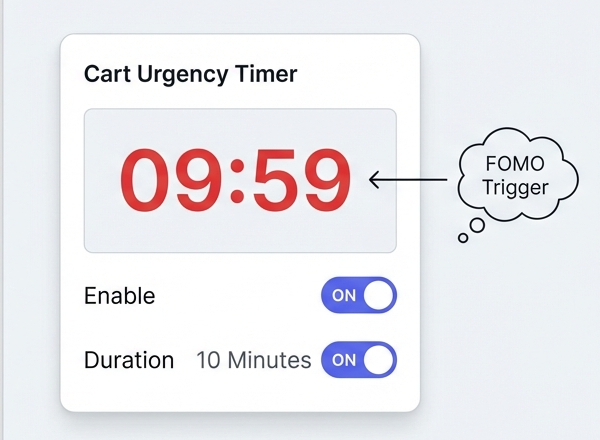
Enable the cart urgency timer and progress bar. Customize colors and goals like free shipping, discounts, or free gifts to motivate customers to proceed.
Step 5: Create Discount Rules
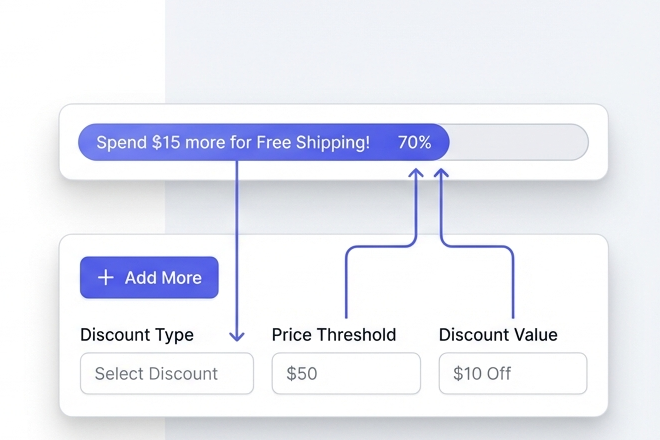
Add discount rules by selecting discount types, defining values, and labeling discount tiers clearly so customers understand the benefit instantly.
Step 6: Enable Order Notes
Allow customers to add notes for gift messages or special instructions, which builds trust and improves the shopping experience.
Step 7: Rearrange Cart Sections
Using drag-and-drop, reorder cart sections so the most important elements, like rewards or checkout buttons, are placed strategically.
Step 8: Customize Cart Items
Adjust layout, fonts, and labels to ensure product details are clear and easy to scan.
Step 9: Enable Product Recommendations
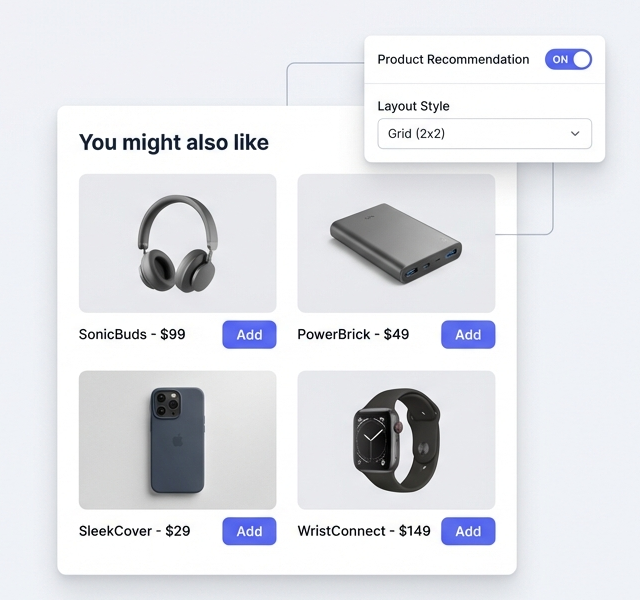
Turn on product recommendations and configure rules to show relevant items. Choose layouts that fit your store's design.
Step 10: Add Discount Code Box
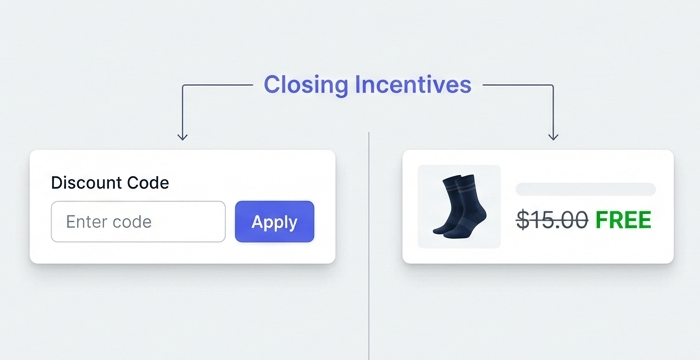
Allow customers to apply coupon codes directly inside the cart drawer without navigating away.
Step 11: Offer Free Products
Set rules for free gifts based on cart value or product conditions, and select the free product to be displayed.
Step 12: Configure Checkout Options
Choose which checkout actions and buttons appear to streamline the final step.
Step 13: Enable Floating Cart Icon
Activate and customize the floating cart icon so it's visible, intuitive, and easy to access.
Step 14: Save and Preview
Save all changes, view your online store, click the cart icon, and test the entire experience.
Also Read: https://wizio.app/blogs/how-to-add-product-recommendations-on-shopify
Optimizing Your Cart Drawer for Conversions and AOV
To get the best results, keep these principles in mind:
- Show only highly relevant upsells
- Keep the design clean and uncluttered
- Highlight savings clearly
- Reduce decision fatigue with simple choices
A focused cart drawer converts far better than one overloaded with offers.
Why the Wizio Shopify Bundle App Is the Recommended Tool
Wizio is built specifically for Shopify merchants who want results, not complexity.
With Wizio, you can create:
- Product-specific quantity breaks
- Frequently bought together bundles
- BOGO and free gift offers
- Build-a-box bundles
- Cart drawer upsells with progress bars
It requires no coding, works with most themes, offers deep customization, and focuses on increasing AOV and conversions through smart UX.
Start Improving Your Cart Experience Today
Choose one hero product, build a product-specific cart drawer using Wizio, and track results over the next 7–14 days. Improving the cart experience is often the fastest way to unlock higher conversions and sustainable revenue growth.
Frequently Asked Questions
What is a cart drawer in Shopify?
A cart drawer is a slide-in cart that lets customers view and edit their cart without leaving the current page.
How to add a cart drawer in Shopify?
To add a cart drawer in Shopify, you need either a theme that supports cart drawers natively or a dedicated app that enables advanced cart drawer functionality.
What are common Shopify selling mistakes?
Many Shopify stores struggle not because of poor products, but because of avoidable selling mistakes, especially around the cart and checkout experience.
What is the difference between a cart drawer and a cart page in Shopify?
The main difference between a cart drawer and a cart page is how customers interact with the cart during their shopping journey.
Can I set this up without coding?
Absolutely. Wizio allows a full setup without technical knowledge.
Is the cart drawer mobile-friendly?
Yes, it works smoothly across desktop and mobile devices.