












For Shopify store owners looking to increase Average Order Value (AOV), drive more conversions and incentivise purchases, a Buy One Get One (BOGO) offer is one of the most compelling promotions. With the right setup, it invites shoppers to add more items, makes them feel like they're getting a deal, and ultimately helps you sell more products and boost revenue.
If you're using the Wizio Bundle app, you have an excellent tool to easily create BOGO offers (and other bundle types) without heavy technical work. According to the app listing, Wizio supports unlimited bundles, BOGO, free gifts, volume discounts and is designed for Shopify stores. Want to increase AOV? Try the Shopify Buy 2 Get 1 Free strategy explained in this guide.
In this post, we'll walk you through the full process, from installing the app to launching your live Offer.
Watch the guide video, don’t miss the step-by-step video tutorial for quick implementation.
Why Use Wizio Bundle for BOGO Offers?
Before diving into the steps, let's understand why Wizio is a good choice:
- It integrates with Shopify, and supports bundle types like "Buy X Get Y", volume discounts and free gifts.
- It offers a user-friendly interface, no heavy coding required.
- It allows for customization of layout, theme, font, colour, etc, so the Offer matches your brand style.
- It gives you flexibility to create targeted offers (by Product, by quantity), which helps you tailor the promotion to your strategy.
- Many merchants see increases in order size when bundles/BOGO are used, and offers are well-presented, so you're aligning with a proven conversion tactic.
By choosing Wizio Shopify Bundle App and following the steps below, you'll be well-equipped to create a professional BOGO bundle that your customers will understand and respond to.
Step-by-Step: Creating a BOGO Bundle Offer
Here's how you set up a Buy One Get One bundle in Wizio. It down into four main steps, plus a final check. Then include a table for quick reference.
Step 1: Confirm installation & open the app
1. Log in to your Shopify admin panel.
2. If you have not installed Wizio yet:
- Go to the Shopify App Store.
- Search for Wizio Bundle: Quantity Breaks (or "Wizio Bundle Free Gift Upsell").
- Click Install. It's "one‐click" to install, and no code is needed.
3. Once installed, open the Wizio app from your Shopify admin.
Step 2: Navigate to create your Offer
1. Inside the Wizio dashboard, locate the section for Quantity Bundle or Create Offer.
2. Choose the BOGO / High volume template option (this might be labelled something like "Buy X Get Y" or "BOGO – High Volume").
3. Select your Target this is typically the Product you want the Offer to apply to.
4. Choose the products you are bundling.
5. Add the Bundle Information: For example, the name of the Offer ("Buy One Get One Free"), a description, and any conditions (e.g., same Product, different Product).
6. Choose the Layout & Customizations: Select how the bundle will display on the product page/cart, including colour theme, font style/size, and possibly banner copy.
7. In the Discount Batch section:
- Select discount type: e.g., percentage (100% off second item) or "Free gift" toggle if you're giving a free item.
- Enter the discount value (e.g., "100% off second item" or "Free gift enabled").
- If offering a free gift, enable the free gift option.
Step 3: Customize appearance and activate
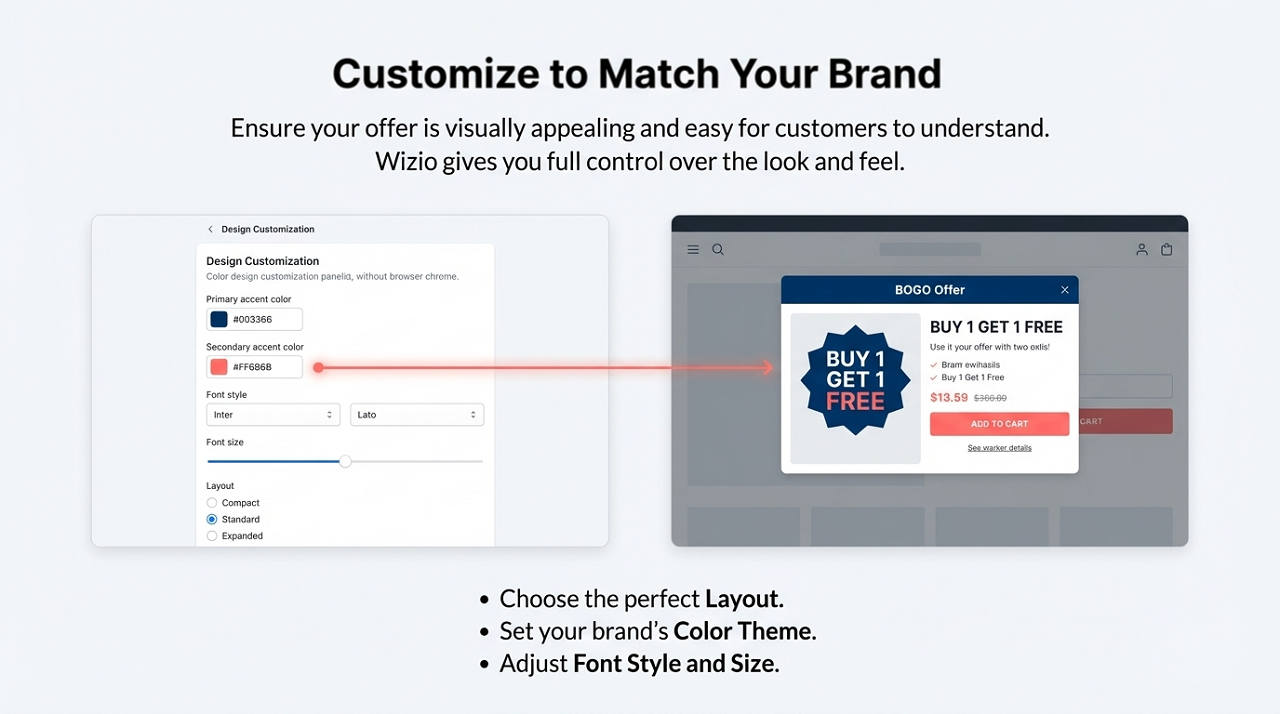
1. After discount settings, select the Product again or confirm the Product chosen.
2. Use customization settings: Colour theme, font style, and size. Ensure the bundle offer matches your store's branding and looks visually appealing.
3. Use the Preview on the right side to check how it will appear to customers.
4. Once everything looks good, click Save (or Activate/Go Live).
5. From that "save" state, you should see a View icon/link, click that to inspect how it looks in live store mode.
Step 4: Check & refine
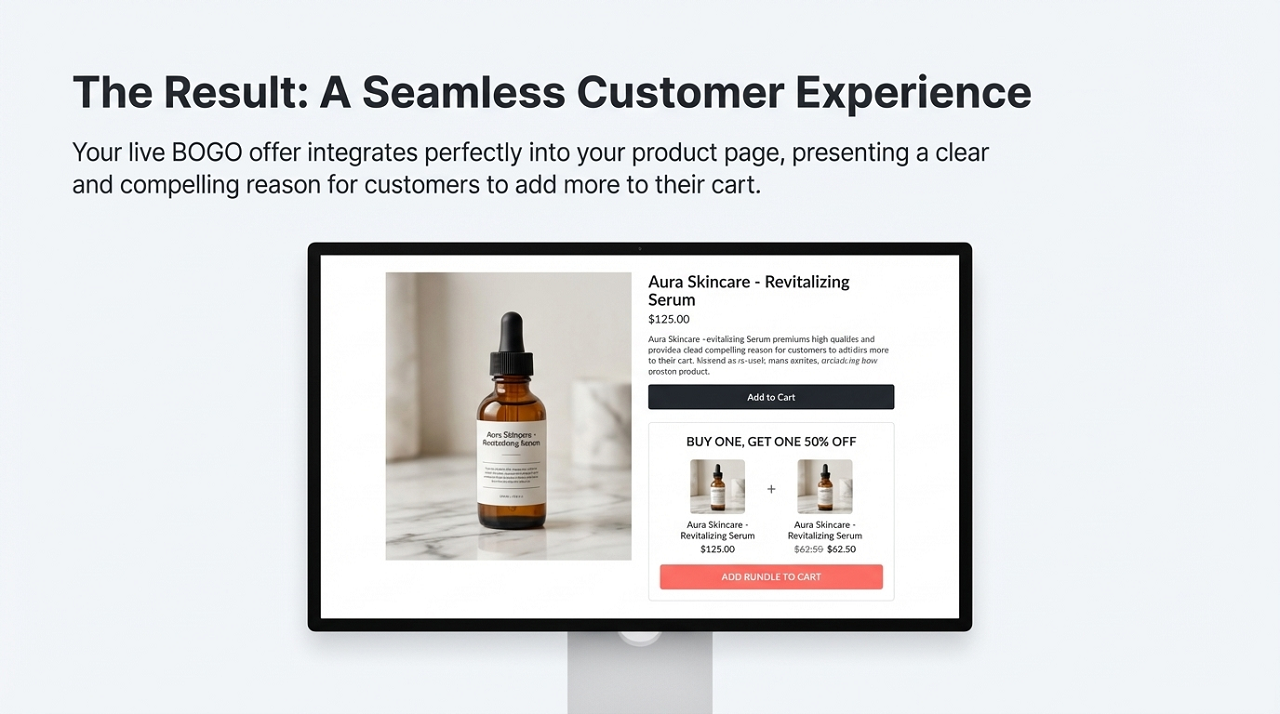
1. On your storefront, go to the products you configured. Confirm that the BOGO offer is visible and clear.
2. Double-check that the discount is actually applying: Add one item to the cart → see if the second item is free/discounted.
3. Ensure the bundle display is visually appealing and easy for customers to understand:
- Is the copy clear ("Buy 1 Get 1 Free")
- Is the pricing/discount clear
- Is the design aligned with your theme (colors/fonts)
4. If anything looks off (layout, responsiveness, wording), go back into Wizio to edit.
5. Once satisfied, your bundle is "live and ready to sell".
Conclusion
Creating a well-designed BOGO bundle offer using Shopify bundle apps like Wizio is an excellent way to drive more sales, increase order value and give your customers a clear incentive to buy more. The process is straightforward: install the app, set up the bundle, customize appearance, test it live, and monitor results. When done correctly, it fosters trust, enhances engagement, and contributes to growth.
If you follow the steps and tips above, you'll have your "Buy One Get One" bundle live in no time, ready for your customers to see and act on.
FAQs
Q1: Do I need coding skills to use Wizio for BOGO offers?
No, installation and setup are designed to be easy and code-free.
Q2: Can I mix products for "Buy one get one free, but on a different product"?
Yes. Wizio supports "Buy X Get Y" style bundles and free gifts, allowing for various products to be included in a bundle.
Q3: Will the Offer appear on both mobile and desktop stores?
Yes. Wizio states mobile-responsive design and theme compatibility as features.
Q4: How do I make sure the discount is applied correctly?
After saving the bundle, always preview it on the storefront, add the product to the cart, verify that the second (or "get Y") item is discounted or free, and ensure the correct pricing is reflected.
Q5: Can I track the number of bundles sold and the revenue generated from them?
Yes, Wizio includes analytics functionality. You should also monitor AOV, bundle conversion, and product combinations performing best.
Q6: What if I want to stop or pause the Offer?
Within the Wizio app, you can disable or delete the bundle offer. Ensure that you remove/promote changes on your storefront so that customers aren't misled.
Q7: Is this strategy good for all stores?
While BOGO offers are powerful, they are most effective when aligned with your margin structure, inventory levels, and customer behaviour. Test and monitor results to ensure it works for your specific store.
Note: If you have any queries or need setup-related help, you can reach out to us through our email or chat support.